SUPPORT GUIDE
Account roles, access, and permissions
Updated: February 10, 2026

Overview
The partner program has several mechanisms to manage administration of the partnership and specific tasks while preserving security.
- Roles. Define all partner users into two global access levels (Admin, user).
- Roles designations. Use to extend administrative privileges for the Partner Sales Center or the Partner Benefits Center to specific users or admins.
- Dedicated contacts. Use to extend permissions to specific contacts responsible for communications and tasks in distinct functional areas.
In addition, these mechanisms span partner company hierarchies to support partners with subsidiaries. While reviewing this guide, the sections explaining roles, role designations, and dedicated contacts assume your company is a singular, self-contained entity with no parents or subsidiaries unless otherwise stated. The nuances of how roles, access and permissions are managed across hierarchical entities are explained below in the Partner company hierarchies section.
Global program roles
Adobe recognizes two primary roles for partner contacts: Admin and User. This structure ensures that admins have visibility of organizational-level operations while users focus on individual-level tasks within the partner ecosystem.
Admins. Sometimes described as a program admin,admins have full access across most connected partner program systems, which allows the admin to manage all aspects of their Adobe partnership. This includes:
- Full access to Manage Profile
- View and edit company information
- Managing contacts and assigning permissions
- Viewing dashboards
- Managing compliance tasks
In addition, admins are responsible for managing program requirements such as:
- Applying for product specialization
- Submitting customer deployments (references)
- Managing the Partner Directory listing
As long as your company’s compliance status is active, admins have full access to the Partner Sales Center. As an admin, you can view lead and opportunity information across your company account. By default, users also gain access to the Sales Center but have fewer privileges than admins and can only see their own leads and opportunities.
The admin role does not include access to the Partner Benefits Center. Instead, any admin or user can be defined as a Billing admin to manage the membership subscription and other requests.
For partners with parent companies or subsidiaries, the admin role is sometimes referred to as Global parent admin, parent admin, or child admin depending on where your company sits in the hierarchy. Refer to Partner company hierarchies for more information.
Users. For the User role, access to specific settings and actions are restricted by default. User-level access in Manage Profile includes:
- View or edit personal information
- View-only access to other company information
- View or submit support cases
- View achieved credentials
- Set communication preferences
Users can’t perform administrative actions like editing company information or managing roles. However, they may be assigned to administrative roles for specific functions without being assigned to the overall admin role. For example, a Billing admin has administrative purview within the Partner Benefits Center but does not gain extended access to Manage Profile functions.
Role designations
In addition to the foundational roles of admins and users, role designations extend admin privileges within specific systems and empower designated users to act with administrative authority in defined areas of the partner experience. These designations provide targeted administrative capabilities without granting full program-wide access, offering a more granular and secure approach to role management.
Billing admin. Users or admins assigned to the Billing admin designation can manage membership subscriptions and other requests through the Partner Benefits Center. While any user can view the Partner Benefits Center and submit requests or make purchases, only billing admins can edit payment sources and initiate mid-year uplevel requests.
Because this role is critical for financial operations and can have implications across partner hierarchies, the designation can only be assigned by a Global parent admin. If your company is a self-contained entity with no parent or subsidiary corporations, all admins will have global parent admin privileges.
Sales Center admin. Users or admins assigned to the Sales Center admin designation have full administrative access to the Partner Sales Center and can view and edit all registered leads and opportunities across their entity regardless of which users entered the lead. By default, all users have access to the Sales Center, but only Sales Center admins have visibility of all leads and reports. This can be assigned by admins.
Dedicated contacts
Distinct from roles and role designations, dedicated contacts serve as specific points of contact for targeted responsibilities.
Legal & compliance contact. This person is responsible for handling all legal topics related to your partnership including program agreement communications and compliance renewals. In alignment with your company’s admin, this person ensures your company’s legal and regulatory alignment.
Learning & development contact. This person oversees partner enablement topics and credentialing efforts. They receive updates related to learning, certification, and enablement, including communication from the Adobe Enablement Node.
In addition, these contacts are essential for administration of the Enablement Node, ensuring operational clarity and accountability within their Node domains. These administrative privileges do not extend to any other areas of the partner experience.
Partner company hierarchies
Our partner program recognizes three levels of hierarchy within related partner companies: global parent, parent, and child companies. Regardless of position within a hierarchy, each partner entity has users and admins, role designations, and dedicated contacts.
- Global parent – has one or more parent companies underneath
- Parent – has one or more children underneath but only one global parent
- Child – while a parent company can have multiple child entities, a child company can only have one parent
Visibility across the hierarchy flows top to bottom only, meaning that admins at the topmost level are considered global parent admins and can view and impact any related entities under their umbrella, both parent and child companies. Similarly, parent admins can view and impact their company and any child companies, but they can’t affect their global parent. At the third level, child admins can only view and impact their entity.
Global parent admin. This role has access to all aspects of the Manage Profile section across the entire hierarchy. They can assign roles and designations and define dedicated contacts for any company under its umbrella. This is the only role that can assign the billing admin designation.
Parent admin. This role has access to all aspects of the Manage Profile section for their entity and any subsidiaries but can’t impact the global parent level above them. They can assign roles and define dedicated contacts (except billing admin) for any company under its umbrella.
Child admin. This role has access to all aspects of the Manage Profile section for their entity only but can’t impact the global parent or parent level companies above them. They can assign roles and define dedicated contacts (except billing admin) for their company only.
Viewing your role and requesting changes to your access
-
Log into the Partner Experience Hub.
-
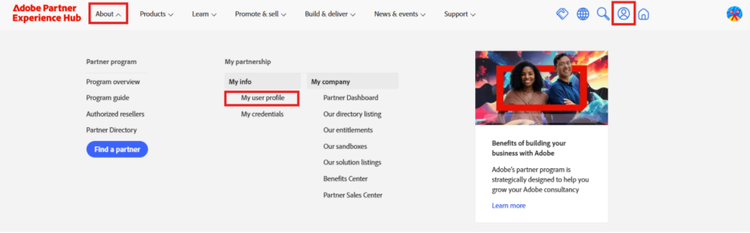
Use the avatar icon in the upper right to go directly to your user profile. Or, in the About menu in the navigation bar, under My info, click My user profile.
-
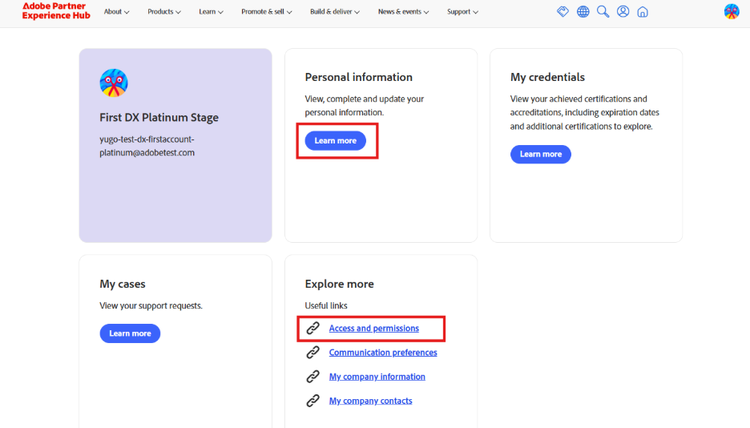
The next page is your user profile homepage, a collection of links to access different aspects of your profile. Either of the actions below will take you to the appropriate page:
-
Personal information → Learn more
-
Explore more → Access and permissions
-
-
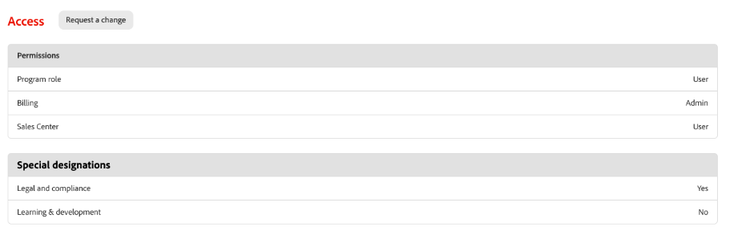
On the personal information page, scroll down to Access to review your roles, designations, and if you are a dedicated contact. In the example image below, the individual is only a user at the global level, but they have admin privileges for the Partner Benefits Center and are the dedicated contact for all things related to legal and compliance.
-
The Request a change button will initiate a request to your organization’s admin for approval. If your request is approved, you will receive an email confirmation and can review the updated changes in your user profile.
Updating your personal information
Keep the personal information in your user profile updated to reflect your current personal and professional details. Make changes as often as you’d like.
Your personal information includes:
- Your name and contact information
- Professional location information
- Job title and description
- Adobe communication/subscription preferences
How to update your personal information
-
Log into the Partner Experience Hub
-
Use the avatar icon in the upper right to go directly to your user profile. Or, in the About menu in the navigation bar, under My info, click My user profile.
-
The next page is your user profile homepage, a collection of links to access different aspects of your profile.
-
Under Personal information, click ‘Learn more’
-
On the Personal information page, use the Edit buttons in each section to update your information and preferences
-
Save your changes