SUPPORT GUIDE
Contact management in Manage Profile
Updated: February 10, 2026

Overview
User management within the Adobe Digital Experience Partner Program is designed to ensure structured oversight for partner company contacts and their access to specific functions through the Partner Experience Hub (PxHub).
All contact management functions are contained in the Company contacts tab in Manage Profile. While all users and admins can access this area, only admins can perform most actions.
Actions for any user
- View all registered contacts for your company
- Invite additional users to the PxHub (individually)
Actions limited to admins only
- Bulk invite additional users to the PxHub
- View or assign roles, designations, and dedicated contacts
- Manage Partner Sales Center access
- Review and approve/deny permission change requests
- Deactivate contacts
- Request hierarchy and business type changes
While all common functions and requests are detailed in this guide, restricted activities will be labelled as “Program admin-only.”
Navigating to the Company contacts tab in Manage Profile
-
Log into the Partner Experience Hub.
-
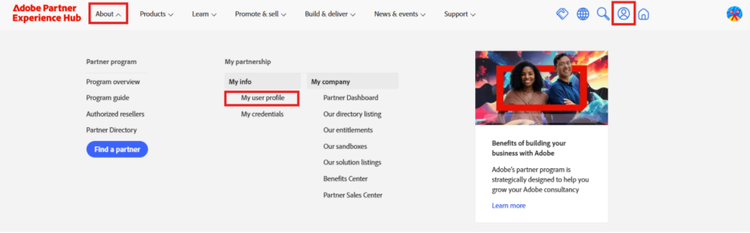
Use the avatar icon or the About menu in the navigation bar to access Manage Profile.
-
Navigate to the Company profile section then use the side navigation to select the Company contacts tab.

-
Use the table to review your company’s contact information, including roles, designations, and program status (list can be exported if needed).
-
Use the filter, search, and starring options to refine your results.
Inviting new users
There are two methods to invite new users to the Partner Experience Hub: one-by-one or all at once. All registered users can invite any individual, but only program admins can invite multiple users at once. The bulk invite option is especially helpful for new partner companies onboarding many employees to the Digital Experience Partner program.
To invite any person using either method, the sender needs to know the person’s first name, last name, and corporate email address (must match domain of registered partner company). Personal email addresses, shared inboxes, or distribution lists can’t be used to join the program.
Invite a single user. Navigate to the Company contacts tab in Manage Profile and click the Invite contact button.
Bulk invite multiple users at once (Program admin only). Navigate to the Company contacts tab in Manage Profile and click the Bulk invite button to invite up to 2,000 company users at once. After clicking the button, admins will be asked to:
- Download the bulk invite template
- Add company contacts to the file
- Upload file to Adobe’s system
Note on file format: The final uploaded file must be in *.csv format. However, if the names of the contacts you would like to bulk invite contain non-Latin special characters, we recommend saving the file as a *.csv (UTF-8) if you have the option, as character-based languages such as Chinese, Japanese, Korean, or Russian might not load correctly in a standard *.csv format.
Admins will receive a confirmation email once the bulk invitation has been sent. Emails are typically distributed within an hour. As team members register for access, admins can track incoming users through the contact list table in Manage Profile. If you did not receive the confirmation email, please check junk mail/spam before submitting a support ticket.
Resending invitations. Navigate to the Company contacts tab in Manage Profile, select the invite you would like to resend, and click the Invite button to send again.
What if invitee doesn’t accept invitation? If your invited contact doesn’t respond to the initial invite, and they later attempt to register to the partner program directly, they will be prompted to continue their registration as if they had responded to the invitation.
Troubleshooting invitations. Sometimes you will encounter an error noting the invitations can’t be sent. Common issues include:
-
Incorrect data entry. The invitee’s first name, last name, and email address are required to send an invitation (watch for typos!).
-
Duplicate user. Contact already exists in the partner CRM. You can verify this on the Company contacts page of Manage Profile.
-
Existing Adobe IMS account for another program. If you invited someone who belongs to another Adobe program (e.g. Adobe Partner Connection), the invitee should register for the portal directly.
-
Unregistered email domain. This error comes up when a contact’s email domain does not match your account’s corporate email domain(s). Potential causes:
- Domain is for an affiliate or subsidiary not already connected to your partner program account
- Non-partner email alias was included (such as a contractor with a different email domain)
- Personal email address was uploaded (e.g. Gmail, Yahoo)
Assign roles and permissions
Navigate to the Company contacts tab in Manage Profile and use the filter, search, and starring options to refine your results, then click the Edit button in the specific user row you want to modify. In the dialog box, use the radio buttons and toggles to adjust the user’s permissions and designations, then click the Save button to save changes. Users will receive an email about the changes.
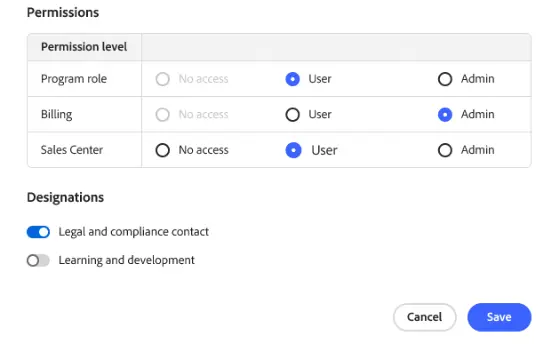
Assignment of the billing admin designation is restricted to the global parent admin. If your company is not part of a hierarchy, the program admin role equates to the global parent admin role and any of these individuals can assign the billing admin permissions.
Manage Sales Center access
By default, and when the organization’s compliance status is active, every user is given Sales Center access based on their program level, allowing them to register deals and review the status of their own leads and opportunities.
In some cases, program admins may need to revoke this access altogether, locking the user out of the Sales Center. As a result, there are three types of access associated with the Sales center:
- User access. Default state, access to register deals and view individual lead and opportunity status.
- No access. Default access was removed by the Sales Center admin.
- Sales Center admin. Extended access to all leads and opportunities for the entity.
To make this change, follow the steps in Assign roles and permissions.
Deactivating users
Navigate to the Company contacts tab in Manage Profile and use the filter, search, and starring options to refine your results, then click the Deactivate button in the specific user row you want to modify.
Request hierarchy and business type changes
All hierarchy changes have to be done through the support team
Certain company information cannot be changed by any admin but must be requested from Partner Support. To initiate any of the updates below, please submit a request to the Partner Support Team.
- Updating the company name, website, or phone number
- Updating the company’s primary business type
- Updating the company’s hierarchy including subsidiary information