SUPPORT GUIDE
Account registration and login
Updated: March 9, 2026

JUMP TO SECTION
- How to join Adobe’s partner program
- Key steps in the registration process
- Registering as a new user at an existing company
- Registering as a new user at a new company
- Program acceptance notification for new companies
- Completing your business compliance requirements
- Logging into the Partner Experience Hub
How to join Adobe’s partner program
Any partner can request to join the Adobe Digital Experience Partner Program, but you’ll first need to address which approach is most appropriate for you based on your company’s previous experience with the program.
- New users registering under an existing partner company. If your company is already registered in the program, use the registration link below to proceed. Note that an Adobe ID is required to register for the program.
- New users registering a new company. If your company has not registered or you want to learn if your company is qualified to join, learn more about program requirements in the guide linked below. If you wish to proceed, use the registration link below.
Note: If you were previously a member of either the Solution Partner or Technology Partner Programs, your profile and login credentials have already been transferred and you do not need to take any additional steps.
Key steps in the registration process
During the registration process, most registrants will encounter the following decision points that dictate the direction of your registration flow.
-
Enter your corporate email ID (all users)
-
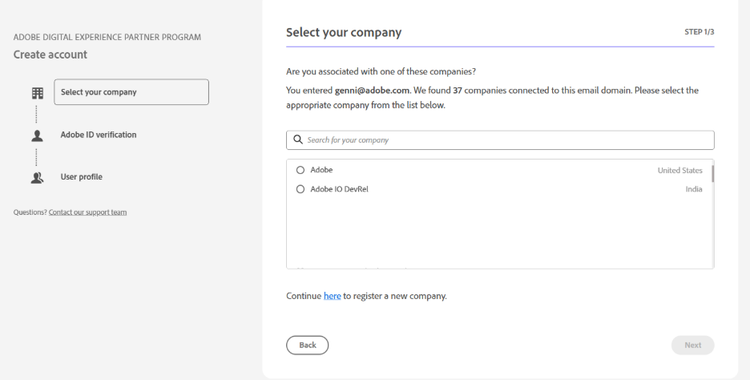
Select an existing company account (all users)
-
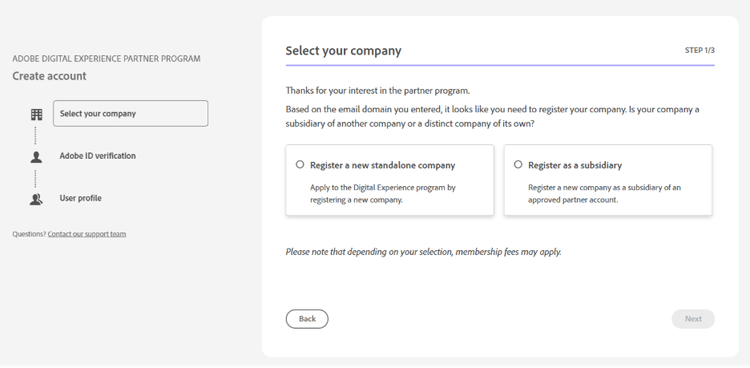
Select whether new company is subsidiary or standalone (registering a new company)
-
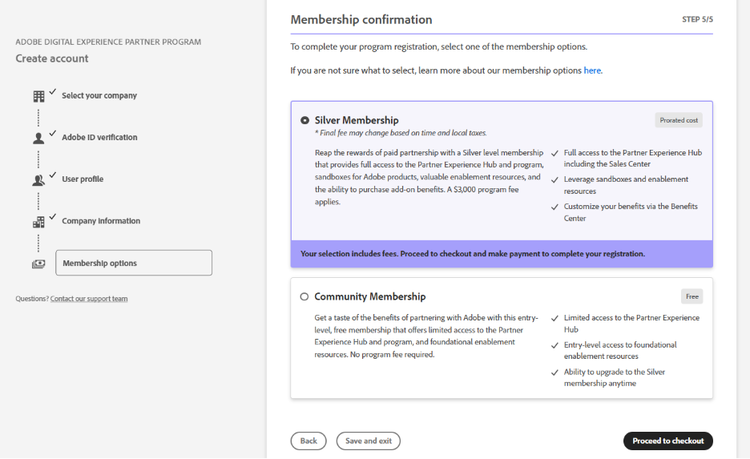
Select program level as Silver or Community (registering a new company)
Registering as a new user at an existing company
- Visit the registration page to get started.
- You’ll be asked to enter your corporate email to confirm that your company is already enrolled in the program. Note: If your company isn’t found, then you can apply for your company to join the program (see next topic “Registering as a new user at a new company”).
- Follow the on-screen steps to proceed with your registration, making sure you complete the required information.
- Review and accept the program agreement’s terms and conditions.
- Click Register to submit the form.
- An onscreen message will confirm successful registration. Next steps will be shared via email in a welcome message.
Registering as a new user at a new company
- Visit the registration page to get started.
- You’ll be asked to enter your corporate email to confirm that your company is not already enrolled in the program.
- At the appropriate screen, choose if your new company should be registered as a subsidiary of another company or as a standalone entity.
- Follow the on-screen steps to proceed with your registration, making sure you complete the required information.
- Review and accept the program agreement’s terms and conditions.
- Now that your user account has been established, you’ll start setting up your new company account. Follow the on-screen steps to proceed as before.
- After completing all information, you’ll need to select your program level. If you choose Silver, the next screen will request payment information and complete the registration.
- For partners choosing Community level, click Register to submit the form. An onscreen message will confirm successful submission.
Program acceptance notification for new companies
Adobe will contact newly registered partner companies within 2-3 business days with one of the following messages:
- Registration conditionally approved and a list of next steps
- Registration rejected and reasons for the decision
In the rare case that you have not heard from Adobe within one week, please submit a ticket to our support team.
Once your registration has been conditionally approved, you’ll need to address our business compliance requirements.
Completing your business compliance requirements
There are three scenarios you’ll encounter based on your new company’s program level.
- New partner subsidiaries at Silver, Gold, or Platinum level. All registered subsidiaries inherit the program level of their parent entity. However, each distinct account must complete the compliance requirements.
- New standalone partners at Silver level must complete the compliance requirements to access key resources and restricted information.
- New standalone partners at Community level are encouraged to complete the compliance requirements for access to the Partner Sales Center.
All new partner companies have 30 calendar days (from the date of conditional approval notification) to complete the Business Compliance Training and Questionnaire (BCTQ) online. During that time, any standalone partners will have Community or Silver access to resources in the Partner Experience Hub based on your selection at initial registration. Subsidiaries of an existing company will have access reflecting their parent company’s program level.
If you have a passing BCTQ score, you’ll be automatically approved and will receive an email confirming your compliance requirements have been met.
If you do not have a passing score or if our compliance team has questions about your company registration, they will begin a manual review and contact you if they have questions. This process can take up to 10 business days.
Logging into the Partner Experience Hub
The starting point for all partner content and resources is the Partner Experience Hub (PxHub). After submitting a new registration, access to PxHub content is contingent based on whether you registered as part of an existing company or a new company.
- Existing partner company. New partner users joining an existing account will be able to sign into the Partner Experience Hub immediately after registration, with access to specific content based on your company’s existing partnership level.
- New partner company. While your new partner company registration is being processed, you can access the PxHub, but content will be restricted until your registration is successfully approved.
If you attempt to sign in before receiving the welcome email, you may encounter some login issues. Once you have already received your welcome email, sign in using the button below.