ACTIVATION GUIDE
Take control of your Adobe partner benefits with your user profile. Here’s how.
Updated: September 30, 2026

JUMP TO SECTION
- Access User profile
- Viewing your role and requesting access changes
- Access Company profile and update company info
- Maintain compliance with program requirements
- Manage company contacts
- View and manage company entitlements
- Manage Partner Directory profile
- Specializations, Credentials, Customer deployments
- Monitor company designations and badges
- Manage partner support tickets
Ensure you and your company are accessing the right tools, resources, and opportunities to grow your business and deliver value to customers.
Your user profile is your control center for how you and your organization show up in the Adobe Partner Experience Hub.
Keeping your personal profile up to date helps Adobe teams understand who you are and how to engage so you're getting the right opportunities, not just more noise.
And for Admin users, the Company Account profile is where you manage key details that power your company’s entire partner experience, from how Adobe engages with your team to how your company is represented across the ecosystem.
Whether you’re new to the Px Hub or an experienced user, take a few minutes to review and complete or update your profile and confirm your company details. It's one of the fastest ways to start getting the full value of your partnership with Adobe.
Watch this walkthrough video or use the other content on this page for guidance on using and updating your user profile.
How to access My user profile, and what you’ll find there
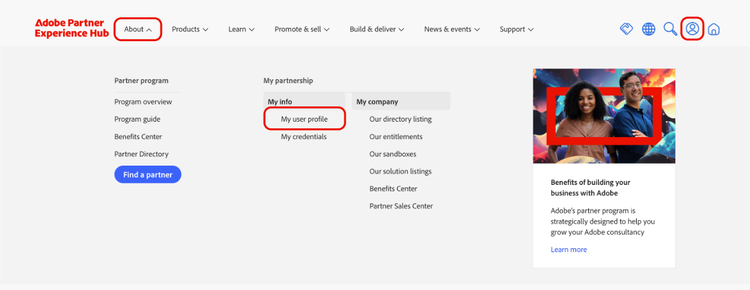
- Log into the Partner Experience Hub
- Use the avatar icon in the upper right to go directly to your user profile. Or, in the About menu in the navigation bar, under My info, click My user profile.

The next page is your user profile homepage, a collection of links to access different aspects of your profile:
Personal information: Confirm or update your contact information, role, and what you're hoping to get out of the Adobe partner program; set your communication preferences; and view your access permissions.
My Credentials: View the credentials you've earned, which contribute to your company's overall credentials count, helping demonstrate your organization's expertise and influencing its ranking in Partner Directory search results.
My Cases: A centralized place to track and manage any support requests submitted to Partner Help.
Viewing your role and requesting changes to your access
-
From your user profile homepage, go to Personal information or use the Access and permissions link
-
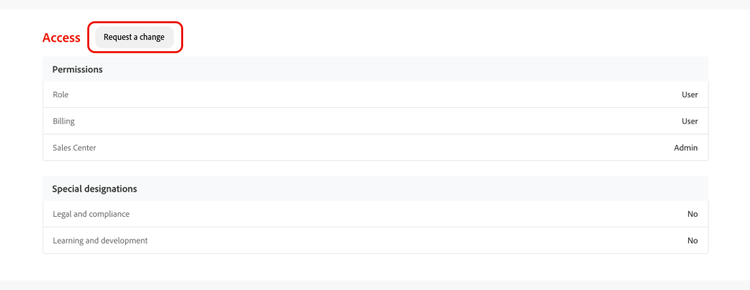
On the Personal information page, scroll down to Access to review your roles and designations. In the example image below, the individual is only a user at the global level, but they have admin privileges for the Partner Benefits Center and are the dedicated contact for all things related to legal and compliance.
-
If you need to change your permissions or designations, the Request a change button will initiate a request to your organization’s admin for approval. If your request is approved, you will receive an email confirmation and can review the updated changes in your user profile.
How to access your Company Account profile and update company information
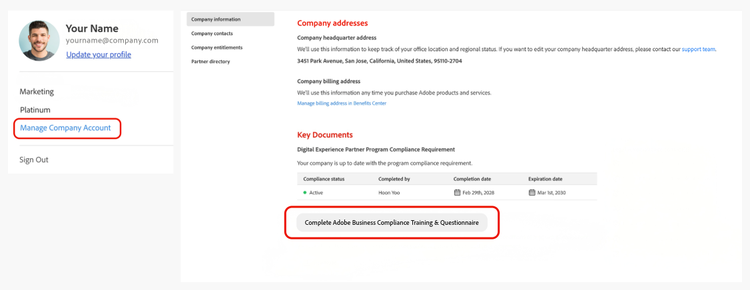
Click the user icon in the top right corner and you'll find Manage Company Account.
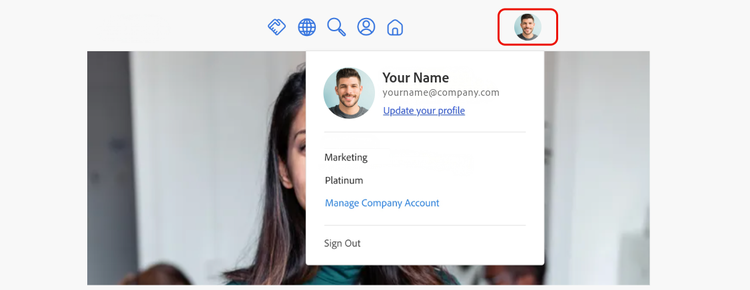
The Company Account profile is where you can review and (for Admin users) manage your company's overall presence in the PxHub. It’s a centralized place to manage everything from company details and contacts to program progress, benefits, and recognition.
In the Company information section, you can view and (with Admin permissions) update your company details, including addresses.
Maintain my company’s compliance with partner program requirements
Keeping compliance active ensures your organization stays in good standing and maintains access to program benefits.
On the Company information page, scroll down to the Key Documents section to review your company’s compliance status and its legal and compliance contacts.
Adobe Business Compliance Training & Questionnaire (BCTQ)
The following partners must complete the BCTQ:
- Silver, Gold, or Platinum partners
- Community partners upleveling to Silver or above
- Community partners who want to gain access to Partner Sales Center
The BCTQ must be retaken every two years to maintain compliance.
For more details, see our compliance support guide.
Manage my company’s contacts
On the Company information page, find Company contacts in the left-side navigation menu.
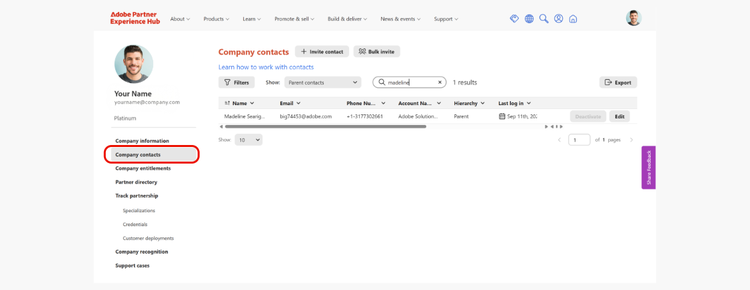
The Company contacts section allows you to see everyone associated with your partner account, view their assigned roles and where they sit within the company hierarchy. Edit or deactivate users as needed to ensure the right people have the right access and responsibilities.
View and manage my company’s entitlements
On the Company information page, find Company entitlements in the left-side navigation menu.
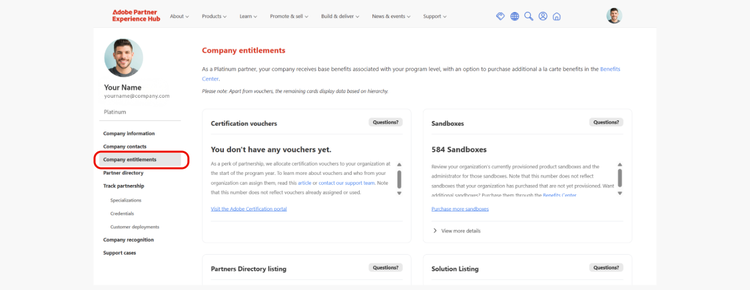
The Company entitlements section gives you a holistic view of what your organization has access to, including certification vouchers, sandboxes, partner directory listings, and solution listings.
Additional a la carte benefits can be purchased via the Benefits Center link at the top of the page.
Manage my company’s Partner Directory profile (Silver, Gold, & Platinum partners)
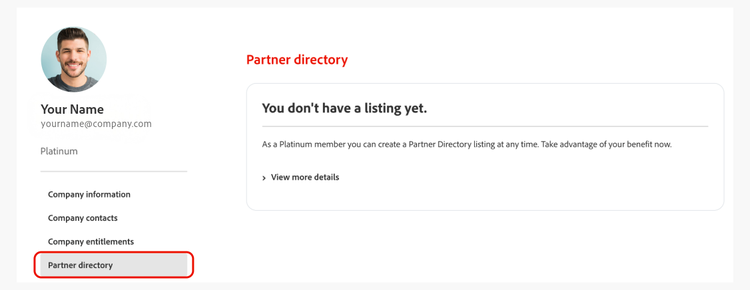
On the Company information page, find Partner directory in the left-side navigation menu.
In the Partner directory section, you can edit or submit a new directory profile and track the status of your current profile(s). Partner Directory listings are available to Silver, Gold, and Platinum partners.
Your directory profile is a key way Adobe sellers and customers discover your business. Keeping it updated helps increase your visibility and differentiate your expertise.
Track your partnership: Specializations, Credentials, Customer deployments (Admin users)
The Adobe Digital Experience Partner Program is designed to recognize expertise and growth, and the Track partnership view helps you monitor your progress and plan your path to unlock more advanced benefits and differentiation.
On the Company information page, find Track partnership in the left-side navigation menu.
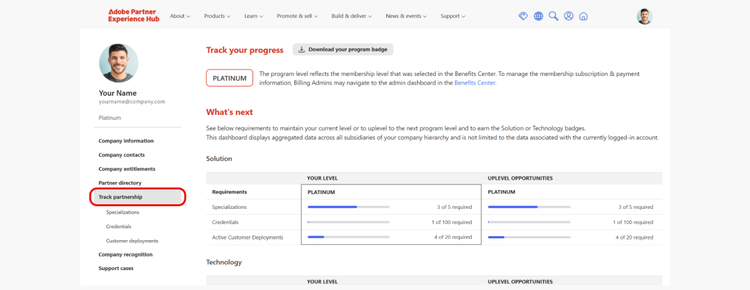
The Track partnership section contains three subsections:
Specializations: View all Specializations your organization has earned, track progress toward new ones, and submit for new specializations directly from this page.
Specializations are one of the strongest signals of your expertise within the Adobe ecosystem. They help differentiate your business in competitive markets, increase your visibility, and position you as a trusted partner. They also improve your positioning in Partner Directory search results.
Importantly, specializations contribute to your overall partner level, meaning they directly impact your ability to grow within the program.
Specializations are valid for two years.
Credentials: View all certifications and accreditations earned and active across your company, and track progress toward new credentials.
Credentials are earned by individuals and roll up to your company totals. They demonstrate that your teams are trained and certified on Adobe solutions, and they are a core requirement for advancing through partner levels and unlocking additional benefits and opportunities.
Credentials directly support your ability to earn Specializations and validate your capabilities to Adobe and customers.
Customer deployments: From this page, you can submit new customer deployments, view all submitted and approved customer deployments, and track progress toward deployment requirements.
Customer deployments represent real-world examples of your ability to deliver successful outcomes with Adobe solutions. They help build trust with Adobe and with prospective customers, and they are a key requirement for both Specializations and partner level advancement.
Customer deployments are valid for two years.
Monitor your company’s designations and badges
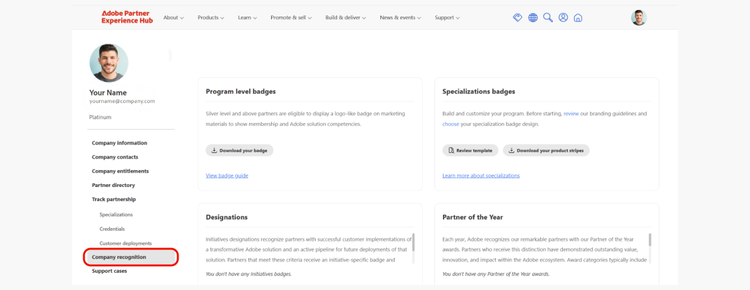
On the Company information page, find Company recognition in the left-side navigation menu.
In Company recognition, view your program level badge, your specialization badges, and any additional designations your organization has earned, including Adobe Active Co-seller designation.
This recognition showcases your company’s credibility and achievements both internally and externally.
Manage your company’s partner support tickets
On the Company information page, find Support cases in the left-side navigation menu.
Here, you have full visibility into your organization's interactions with the partner help team, DXP Support. You can view and manage all support cases across your company, and search, filter, and export case data as needed.
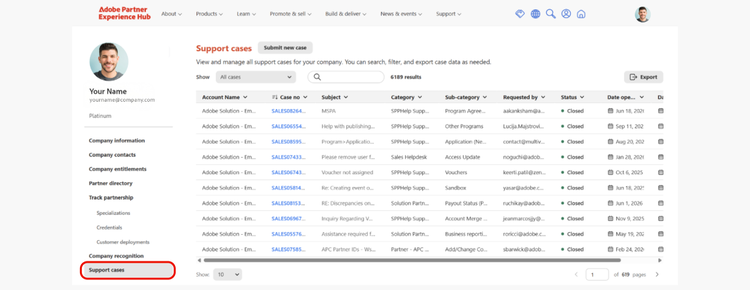
Submit a support ticket here, or via PxHub global navigation: Support > Submit a ticket.
For questions not addressed in this guide, please reach out to your partner manager or our partner help team