SUPPORT GUIDE
Credentials, certifications & accreditations
Updated: February 10, 2026

JUMP TO SECTION
- Terminology guide
- View your achieved credentials
- View your company’s achieved credentials – Admin only
- APPLICATION CERTIFICATIONS
- Taking the certification exam
- Technical issues during the exam
- Renewing your certification
- Certification catalog
- EXCELLENCE ACCREDITATIONS
Terminology guide
In the Adobe Digital Experience Partner Program, credentials play a vital role in demonstrating expertise, meeting program requirements, and enhancing professional credibility. While the terms certification, accreditation, credentials, and certificate of completion are often used interchangeably, they represent distinct achievements with different purposes and impacts.
There are three types of formal learning paths that we collectively refer to as credentials.
- Application certifications demonstrate a learner’s expertise with a given Adobe product and require passing a fee-based proctored exam.
- Sales Excellence accreditations provide foundational product knowledge, including competitive advantages and capabilities, through self-paced modules and a free, on-demand final exam.
- The Technical Excellence integration accreditation gives learners key skills and knowledge to develop technical integrations with Adobe through self-paced modules and a free, on-demand final exam.
To add more complexity, application certifications are managed through a dedicated site, the Adobe Certification Portal, that also awards Certificates of completion when a preparatory course is completed. While these acknowledge a learner’s participation, certificates of completion do not count toward program requirements or specializations and are not considered to be credentials.
Both certifications and Excellence accreditations do result in badges for individual learners.
View your achieved credentials
Users may view all achieved certifications and accreditations from their User Profile in the Manage Profile area of the Partner Experience Hub (PxHub).
This includes the credential name, expiration date and means to retrieve the badge.
-
Log into the PxHub.
-
Use the navigation menus or the shortcut icon on the left to navigate to Manage Profile area.

-
Click the Learn more button under My credentials.
-
The table includes all credentials you’ve acquired, both active and expired.
-
You may filter or search for specific credentials and export the list.
-
Relevant badges can be downloaded from this screen.
View your company’s achieved credentials – Admins only
For designated partner admins who are tasked with maintaining the Adobe partnership and corresponding requirements, we’ve made it easy to track credentials across the company and multiple users.
Note: Only administrators have access to the organizational credential view. Individual users can only access their own credentials.
-
Log into the PxHub.
-
Navigate to the Partner Dashboard using the link in the About menu.
-
Using the vertical navigation menu on the left, select Credentials under the Track partnership heading.
-
In the main results area, the table will show all credentials earned by anyone associated with your company by default, including expired credentials.
-
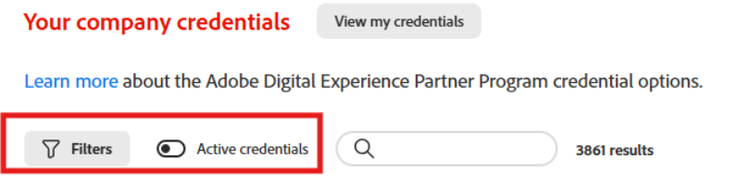
Use the Filters dropdown and the Active credentials toggle to narrow your results.
-
You can also search for specific credentials and export any resulting lists.
Application certifications
Taking the certification exams
We recommend you review all information about a specific certification before proceeding with the exam. The image below shows where to find important details on the certification site. Most certifications include exam guides, and many of these have sample tests.
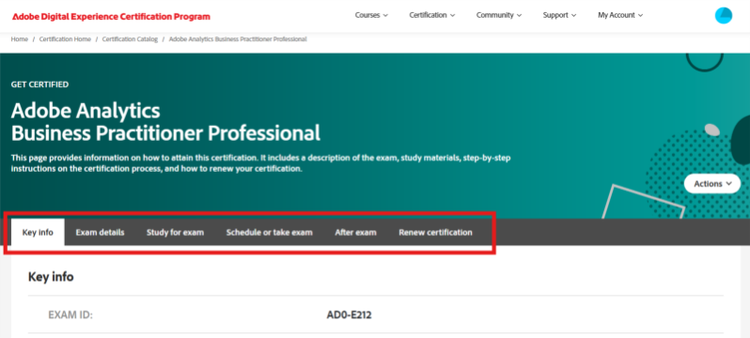
Using the tabs denoted in the red box on the image, learners will find important details on exam preparation, taking the exam, and paying the exam fee. Depending on your company’s level of partnership, you may have access to fee discounts and/or vouchers.
Technical issues during the exam
As described in the certification details, all learners are required to take their proctored exam using the Guardian browser. There will always be a chat icon within the Guardian browser, so you can reach Meazure Learning Support directly.
If you are disconnected during your exam, you will receive an email notification from Meazure Learning Support to assist with reconnecting. You can also use the chat icon in the browser.
Unfortunately, our support team is unable to assist with any technical issues that occur during the exam and must redirect you to Meazure Larning Support for help.
Renewing your certification
An Adobe certification expires after two years, but you can renew it before it reaches its expiration date. If you would like to regain your certification after it has expired, you will be required to take the fee-based exam. All learners receive an email notification 180 days before their certification expires. If you have changed employers or your email address has changed, you might not receive the notification. We encourage all learners to add a secondary email address on the certification site under My account → Profile.
The steps to view your earned credentials, both certifications and Excellence accreditations, are outlined in the View your achieved credentials section above. PxHub users can view all expired and active credentials as well as their expiration dates.
Certification catalog
Adobe provides a comprehensive catalog of certifications where partners can explore available options.
Excellence accreditations
Enrolling in an accreditation course
There are two types of Excellence accreditations, Sales Excellence accreditations and the Technical Excellence integration accreditation.
Learning tracks. In addition, every accreditation course offers two distinct learning tracks: standard track or fast track. The full course and its prerequisites are required for the standard track. However, especially in the event of accreditation renewals, a learner might want to skip directly to the exam, in which case they would choose the fast track.
Currently, our systems will allow learners to complete all requirements without ever enrolling in the course. Please be sure to follow all steps outlined to ensure you are properly enrolled in the accreditation course before starting any content.
Taking the accreditation exam
The number of tries (attempts) to pass the accreditation exam depends on which learner journey you chose, standard or fast track.
If you choose the fast track learner journey, exams must be passed on the first attempt. Failing the fast track exam requires the learner to complete the standard track and prerequisite courses.
Please be mindful of the following to avoid issues completing the fast track exams:
- As soon as you click the link to go to an exam, you will see a pop-up asking if you want to launch a new attempt. Clicking Launch starts the first attempt.
- Closing the browser window after choosing Launch but before completing the exam will be counted as an attempt.
Renewing your accreditation
Each Excellence accreditation expires after two years, but you can renew it before it reaches its expiration date.
Once an accreditation has expired, you will be required to retake the exam. If you are familiar with the product, you can choose the fast track journey and skip the required coursework, but you must pass the exam in a single attempt.
All learners receive an email notification one month before a credential expires. If you have changed employers or your email address has changed, you might not receive the notification.
The steps to view your earned credentials, both certifications and Excellence accreditations, are outlined in the View your achieved credentials section above. PxHub users can view all expired and active credentials as well as their expiration dates.
Badges
Regardless of whether a learner completes one track or both, only one badge is earned per accreditation. If the exam is completed (either standard or fast track) before enrolling in the course, the badge will not be awarded.