SUPPORT GUIDE
Sales Center and deal registration
Updated: February 10, 2026

JUMP TO SECTION
- Overview
- Recommended enablement
- Accessing deal registration
- Terminology: Leads and opportunities
- Transferring lead ownership to colleague
- Pipeline tracking and reporting
- View all leads and opportunities
- Leads and opportunities requiring action
- Unable to make changes (leads locked)
- Inactive leads
- Request report changes
- Customizing report display on dashboard
- Proof of involvement
- Financial incentives
- Pipeline privacy
- Considerations for multinational partners
- Support
Overview
Deal registration refers to Adobe’s process for documenting a joint business opportunity in Adobe’s sales system via the Partner Sales Center in the Partner Experience Hub. Created with the partner’s professional services business in mind, deal registration promotes a collaborative relationship between partners and Adobe on these opportunities.
While deal registration is open to all partners, financial incentives are only available to partners at the Silver, Gold, and Platinum levels who have accepted the latest Adobe Digital Experience Partner Program Agreement.
View full rules and guidelines

Recommended enablement
For those new to the partner program or the Sales Center, we’ve gathered a number of enablement resources to support you in all aspects of deal registration and pipeline management.
Accessing deal registration
By default, any partner user can enter an opportunity in the Partner Sales Center. Users can only see the leads and opportunities they’ve entered, but Sales Center admins can view all opportunities for their company (or child entities) regardless of who it was entered by.
Designating a Sales Center admin. Anyone can be designated as a Sales Center admin by your company’s program admin. We recommend that every partner designate one or two people to serve as your company’s Sales Center admin to manage all lead registrations for your team. This will help ensure that you receive full credit and incentives for all registered and eligible opportunities.
No access. If you don’t have access to deal registration, it could be because:
- Your company’s compliance status is not current
- Your company admin revoked your access
Terminology: Leads and opportunities
Both leads and opportunities refer to potential new clients or consumers of Adobe products and services. The distinction between the terms reflects different stages of Adobe’s sales cycle. All entries start out as leads and are progressed into an opportunity after Adobe reviews, qualifies, and converts the entry. Within the Partner Sales Center, partners will work with both leads and opportunities.
Adobe initiated (selling)
- Adobe initiated (selling)
- During sales stages 1 to 2, you’ll work on leads
- After sales stage 2, leads are converted to opportunities by Adobe
- From sales stage 3 to close, and you’ll work on opportunities
Both leads and opportunities are visible from within the Sales Center and are linked to each other after a lead is converted to an opportunity.
Transferring lead ownership to colleague
In some cases, the person who registers a lead is not the same as the person who works on the lead. For example, sometimes you have a designated person to enter leads, but your sales team needs to be able to work on it as it progresses. Fortunately, because anyone in your organization with Sales Center access has visibility to leads, ownership transfers are not needed.
Pipeline tracking and reporting
View all leads and opportunities
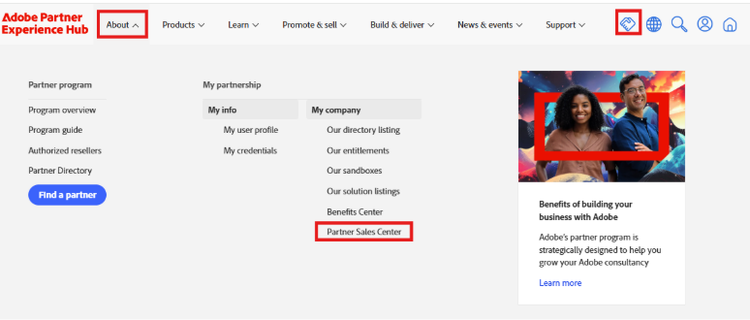
There are two primary ways to navigate quickly to the Partner Sales Center:
-
From the top navigation bar, click About → My partnership → My company → Partner Sales Center
-
On the shortcut menu to the right of navigation bar, click the handshake icon
-
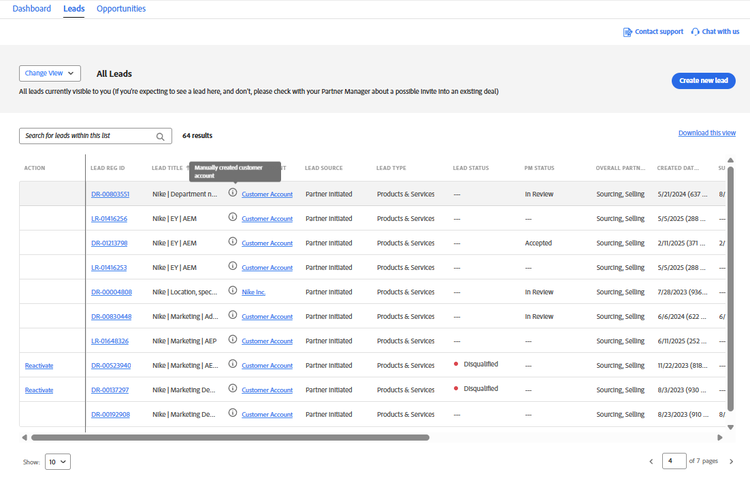
Once you’re on the Sales Center dashboard, another menu bar appears right below the top navigation menus. From either tab, select Show all from the dropdown list.
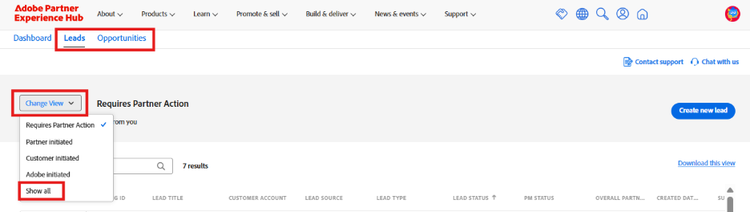
You can also refine your view by selecting any of the following options from the same menu:
- Requires Partner Action
- Partner initiated (sourcing)
- Customer initiated
- Adobe initiated (selling)
You can also go to the Sales Center Dashboard tab from the page menu and select a report that suits your needs.
Leads and opportunities requiring action
You can discover all actions needed for any lead or opportunity for your organization with the following steps:
-
In Partner Sales Center, move to Opportunities tab

-
Click Change View
-
Select Requires partner action
This will list all leads and opportunities that require action, with the Action column of that list indicating the action you need to take for a given lead or opportunity. For example, it could say any of the following:
- Edit & submit partner information
- See opportunity
- Attach document as POI
These actions are clickable and will open the lead or opportunity so that you can take the required action.
There are many additional reports and links available from both the Leads and Opportunities tabs to explore completed leads and opportunities and to discover actions that may need to be completed. These options are visible by clicking on Change View and selecting an option for the dropdown or when you open the lead or opportunity from the table.
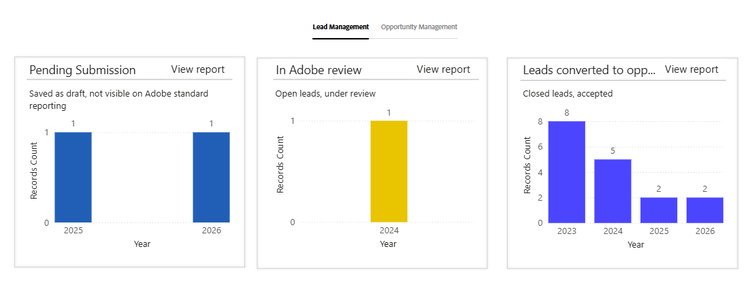
Partners can also download reports and apply filters once you’ve clicked View report to access the full report.
Notifications. Adobe will notify partners by email when their leads or opportunities have been closed.
Unable to make changes (leads locked)
There are two primary scenarios in which leads might be locked:
- During the review/approval process by Adobe between sales stages 2 and 3
- Once a lead has been converted to opportunity, Adobe manages pipeline-related fields and you cannot directly make changes to these fields
Once a lead is submitted to Adobe, we have three phases of review, with different impacts on locking behavior:
- Submitted, but prior to partner team review. In this phase, the lead is not locked. You’ve submitted your lead, but the partner manager hasn’t yet begun their review. There will be a Recall button available to retract the lead if needed.
- Submitted and partner team review has started. Once the partner team starts reviewing your lead for approval and determining if it qualifies for sourcing or selling attribution for specific products, the Recall button disappears and the lead is now locked. You’ll need to contact the assigned partner contact if you need to retract the lead. This partner contact’s name appears on the top right of the lead or opportunity you’re currently working with the label Contact Partner Manager(s).
- Review by Adobe sellers has started. In this phase, the Adobe seller is aligning on the partner role(s) recommended by you and the Adobe partner team. The lead is locked at this point and they will manage pipeline-related fields such as Products, Close Date, Stage, and so on. Attaching co-selling POI documents is recommended during this phase.
For leads or opportunities created by someone internally at Adobe, these items are tied to that seller’s pipeline. In these cases, these pipeline-related fields are managed by them and locked by default.
If you’re not seeing an Adobe-entered lead or opportunity in your pipeline, ask a partner manager to ensure that the account team has reviewed and approved your role(s) on the engagement, which will then extend visibility to you. Without that request, not only will opportunities managed by Adobe not be visible to you, but attribution and compensation cannot occur.
As a general rule, if you can’t see the lead or opportunity being worked on together with Adobe, then a step in the process has likely been missed. In these cases, be sure to reach out to your assigned partner contact to correct the issue.
Inactive leads
Leads are automatically archived after 6 months of inactivity. To reactivate an inactive lead, contact our support team or reach out to your Partner Manager or Hub Associate.
Request report changes
While we do have the ability to add new fields or columns or to create a new report type, from a resource perspective, we try to minimize changing report structures frequently. If you have a suggestion, please share it with your partner contact and we will assess if the change is warranted and can be implemented Note that you can also adjust the appearance of a report by using the report filters. Report modification changes should be requested through a ticket for our support team.
Customizing report display on dashboard
Currently, the reports included in the dashboard are standardized for all partners. If we receive the same request from multiple partners to include a specific report, we will modify the dashboard. Report modification changes should be requested through a ticket for our support team.
Proof of involvement
Proof of Involvement (POI) documentation, typically an email, should be communication between the customer and the partner that shows how the lead started with the partner prior to Adobe’s involvement, how the partner qualified the lead, and how the partner helped co-sell alongside the Adobe team.
POI format. Email .msg or .eml files are the preferred format for a POI, or anything that is clearly dated, with the names and the roles of the individuals involved.
Sourcing vs. selling. Adobe auditors require documentation validating your role in an opportunity, regardless of whether you were a sourcing or selling partner, especially if you’re seeking attribution credit or a rebate/incentive for your contributions to the deal.
- POI for sourcing should show how partner obtained intelligence about a new opportunity and covers sales stages 1 to 2.
- POI for selling should show partner collaborated with Adobe sellers during sales stages 3 to close.
Documentation requirements. POI documents must meet three criteria:
- Show communication with client. The document must show two-way communication between the partner and client’s decision-maker—not exclusively with Adobe sales reps. This communication must support your sourcing and/or selling attribution on the opportunity
- Documentation content. For sourcing credit, lead creation must have been performed within one month of the first contact with the client. For selling credit, you must show communication between the partner, the client, and Adobe sellers that demonstrate how the partner qualified the lead, introduced the sales team to the lead, and co-sold through to deal close.
- Trusted file format. All POI details must be shared in a file format that is not easily modified or manipulated. For example, you cannot use cut and pasted emails, forwarded emails, summaries, or similar. While these are helpful, they are not sufficient proof on their own. Typically, you would attach the email messages between you and the client discussing Adobe, the relevant Adobe products, and the specific deal for which you are seeking credit.
To understand what our auditors at Adobe consider to be valid POI, see the guidelines and examples guide.
When to attach the POI. Although POIs can be attached to a lead up until sales stage 7, we understand that you may not have the strongest POI early in the engagement. However, it’s important to understand the POI requirement was initially added to increase the payout success rate for partners expecting rebates. Attaching your POI as early as possible remains the best practice, and POI must be submitted no later than 30 days from deal closure to qualify for incentives.
Important reminders
- Partners must submit POI to receive incentives
- POI must be attached within 30 days of deal closure or it will be deemed ineligible per deal registration guidelines
- Partners will receive automated notifications if POI is missing
- Partner is responsible for ensuring POI is submitted
- Internal Adobe deal reviews may require POI to be shared at any point
- Partners should be prepared to share POI upon request
Financial incentives
Requirements. Primarily, you must meet the following two requirements to receive financial benefits:
- Opportunities must have your partner account attributed in either the Sourcing and/or Selling role in Adobe's CRM
- You must attach valid Proof of Involvement (POI) documents in the document section of the opportunity.
Additional rules and exceptions are outlined in the deal registration guidelines. For example, Adobe does not pay incentives on reselling or public sector deals.
Payout timing. Deal registration rebate payouts happen during the middle month of every quarter and are deposited into the partner’s bank account based on the VMI number you have listed on your partner account. If your account doesn’t have a VMI number, please contact our support team to request and fill out a VMI form.
In general, if the deal meets program requirements, the partner receives payment in February, May, August, or November. For example:
Calculating payouts. The amount of your payout depends on the amount of the deal and whether your documentation shows you as a sourcing and/or selling partner for that deal.
You can see the exact payout percentage in the Adobe deal registration guidelines.
Pipeline privacy
GDPR and data privacy regulations. Fields marked with an asterisk (*) are required fields. Partners participating in our partner program sign a contract with Adobe that allows information sharing between Adobe and the partner.
Partner visibility limitations. By default, a partner organization can only see leads and opportunities created within their partner entity, not those created by other partners within their account. If you are a global parent admin or parent admin, you can see your pipeline and that of your child entities.
Considerations for multinational partners
All partner accounts can access the Sales Center by default. Typically, all leads and opportunities would be entered withing a single partner account and then be sorted by region.
However, another option is to create individual regional accounts for related entities. If taking this option, anyone working with the Sales Center will need to ensure that they are logging into the intended partner account and manage each account and list of contacts separately.
Support
If you encounter an error message, take a screenshot of the error, briefly describe how it occurred and what you were trying to accomplish or expected to see. This information should be submitted to our team via support ticket.
For any other assistance, please submit a help ticket.